
Managing shipment documentation is a vital part of logistics operations. The Sensos platform empowers users to upload, preview, download, and manage key shipment documents - making it easier to keep critical records accessible and organized.
Key Capabilities
With Shipment Documents, users can:
-
Upload up to 30 documents per shipment (each up to 20MB)
-
Preview supported files directly in the browser
-
Download or delete individual documents
-
Share documents (coming soon)
Uploading Shipment Documents
Supported File Types
-
Microsoft Office formats (.docx, .xlsx, etc.)
-
.csv
-
.pdf
-
.jpg, .png, .heic
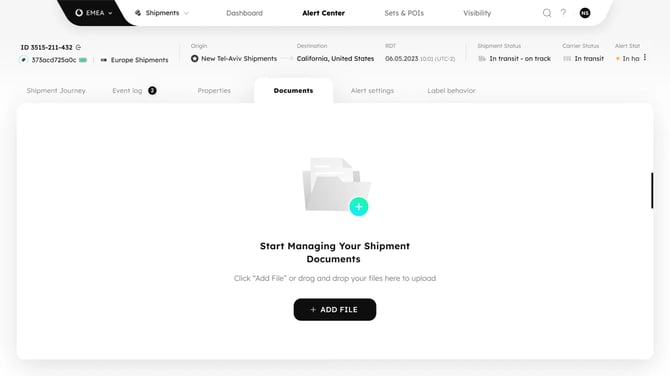 Upload Flow
-
Navigate to a shipment card.
-
In the Documents tab, click "+ ADD FILE" or drag and drop files.
-
Select up to 30 files (each under 20MB).
-
The system validates file size, type, and total count.
-
Upload begins; valid files are attached to the shipment.
-
You receive success or error feedback for each file.
Notes
-
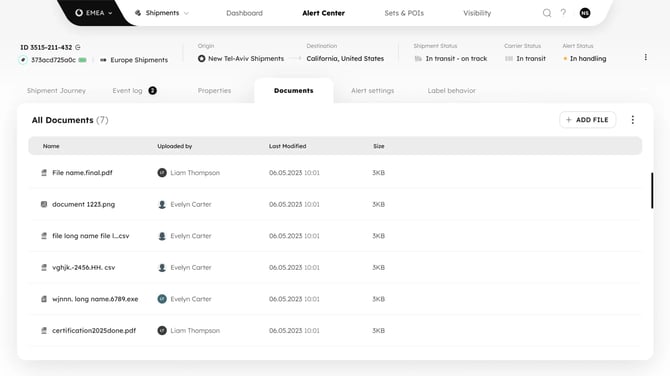
You can rename uploaded documents after uploading.
-
Uploaded documents are automatically sorted by most recent upload date.
- The documents associated with a shipment will remain accessible as long as the shipment exists in Sync.
Automatically Generated Reports
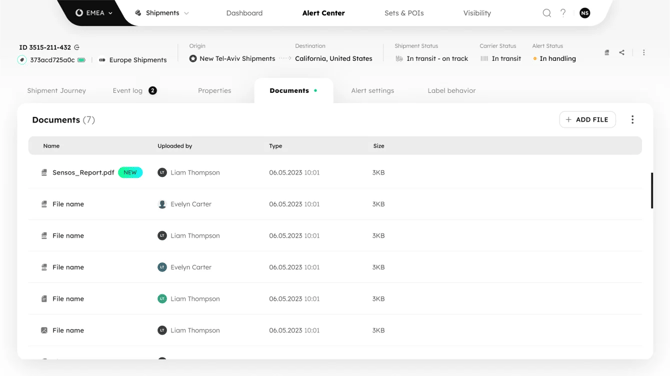
When exporting a Single Shipment Report (PDF) from the shipment menu, the system will automatically attach the report to the Documents tab of that shipment.
- You can download or delete the report directly from the list.
- The document filename includes the shipment ID and export timestamp.
- If configured, the PDF will also be downloaded locally by default.
This ensures that exported records are always accessible within Sync and tied to the shipment's lifecycle for future reference.
Deleting a Document
How to Delete
-
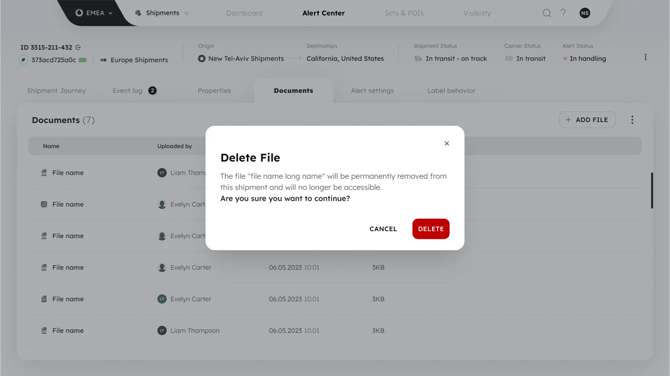
Click the delete icon next to a document.
-
Confirm the deletion in the prompt.
-
The document is removed and the deletion is logged.
Previewing Documents
No need to download PDFs or images to view them.
Supported Preview Types
-
.pdf
-
.jpg
-
.png
-
.heic
Preview Flow
-
Click the options menu on a document.
-
Select "Preview".
-
The file opens in a new browser tab for quick viewing.
Downloading Documents
To download a document:
-
Open the Documents tab within a shipment.
-
Click the "Download" button next to the file.
-
The document will open or save to your device, depending on your browser settings.
Document Metadata
Every document you upload includes metadata for easy tracking and future scalability. Metadata includes:
-
File name
-
File type
-
File size
-
Upload timestamp
-
Uploaded by (user ID and name)
-
Upload source (Manual or API)
LEARN MORE
Get in Touch. We’re Here to Help.
Let’s discuss how Sensos can transform your logistics operations:
Contact Us